
1. はじめに
The SteelSeries Kana Optical Gaming Mouse is engineered for precision and versatility, designed to accommodate all three primary grip styles: palm, claw, and fingertip. This ambidextrous mouse features an ergonomic button layout and size, developed in collaboration with professional gaming teams to ensure consistent performance and accuracy in competitive environments. This manual provides comprehensive instructions for setup, operation, maintenance, and troubleshooting to help you maximize your gaming experience.
2. パッケージ内容
- SteelSeries Kana Optical Gaming Mouse (White)
- Quick Start Guide (integrated into this manual)
3.製品オーバーview
Familiarize yourself with the key components of your SteelSeries Kana mouse:
- 左クリックボタン: 主なアクション ボタン。
- 右クリックボタン: セカンダリアクションボタン。
- スクロールホイール: For scrolling and a clickable middle button. The scroll wheel is illuminated.
- CPI Toggle Button: Located centrally, allows quick switching between sensitivity settings.
- サイドボタン(x2): One on each side, large and easily accessible for rapid-fire actions. These can be customized or disabled via software.
- 光学センサー: Located on the underside, provides precise tracking.
- USBコネクタ: For connecting the mouse to your computer.
- 編組ケーブル: Durable, tangle-free nylon cord.
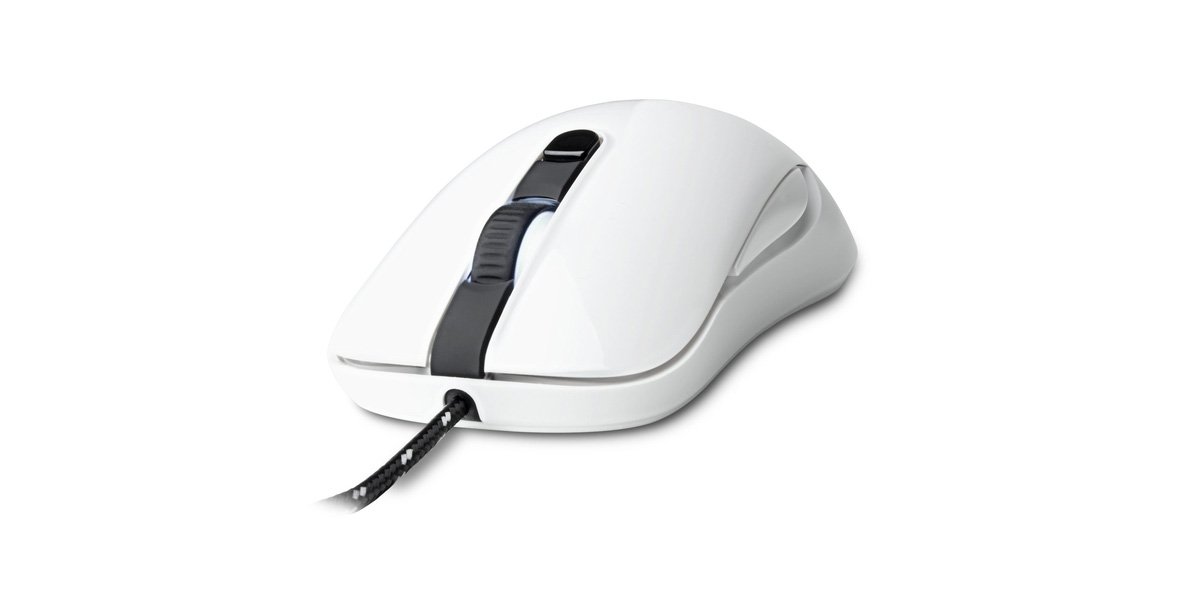
Image of the SteelSeries Kana Optical Gaming Mouse in white, showcasing its ambidextrous design, illuminated scroll wheel, and side buttons.
4. セットアップ
4.1ハードウェア接続
- コンピューターで使用可能なUSBポートを見つけます。
- Plug the USB connector of the SteelSeries Kana mouse into the USB port.
- Your operating system should automatically detect and install basic drivers for the mouse.
4.2 ソフトウェアのインストール(SteelSeries エンジン)
To unlock the full customization potential of your SteelSeries Kana mouse, including CPI settings, button programming, macros, and LED intensity, install the SteelSeries Engine software.
- SteelSeriesの公式ウェブサイトをご覧ください webサイト: Steelseries.com/engine
- Download the SteelSeries Engine software compatible with your operating system (Windows or macOS).
- 画面の指示に従ってインストールを完了します。
- Once installed, launch the SteelSeries Engine to configure your mouse settings.
Macユーザーへの注意: Compatibility with macOS versions 10.9 and later for SteelSeries Engine 2.0 (required for Kana) has historically been inconsistent. Please check the official SteelSeries website for the latest software updates and compatibility information before installation.
5. 操作手順
5.1 基本機能
- 動き: マウスを表面上で動かして、画面上のカーソルを制御します。
- クリック: Use the left and right buttons for primary and secondary actions.
- スクロール: Rotate the scroll wheel to navigate documents and web pages. Press the scroll wheel for its assigned middle-click function.
5.2 Adjusting CPI (Counts Per Inch)
The centrally located CPI toggle button allows you to switch between two pre-defined sensitivity settings instantly. The default CPI settings are optimized for gaming, but can be customized using the SteelSeries Engine software. The maximum CPI supported is 3200.
- Press the CPI toggle button once to switch to the alternate CPI setting.
- Press it again to revert to the previous setting.
5.3 Customizing with SteelSeries Engine
The SteelSeries Engine software provides extensive customization options:
- CPI設定: Fine-tune or set custom CPI values beyond the pre-defined options.
- ボタンプログラミング: Assign custom functions, keyboard shortcuts, or macros to any of the 6 programmable buttons (including side buttons and scroll wheel click).
- マクロ: Create and assign complex sequences of commands with precise timing control.
- LED Intensity: Adjust the brightness of the illuminated scroll wheel.
- プロfiles: 複数のプロを作成して保存files for different games or applications, with automatic switching based on game triggers.
6. メンテナンス
6.1 マウスのクリーニング
To ensure optimal performance and longevity, keep your mouse clean.
- 外観: 柔らかく糸くずの出ない布で軽く拭き取ってください。ampマウスの表面を拭く際は、水または中性洗剤を使用してください。刺激の強い化学薬品や研磨剤は使用しないでください。
- 光学センサー: Gently clean the optical sensor lens on the underside of the mouse with a dry cotton swab or compressed air to remove dust or debris.
- マウスフィート: Ensure the mouse feet are clean and free of obstructions for smooth gliding.
注意: Do not immerse the mouse in water or any cleaning solution. Avoid spraying liquids directly onto the mouse.
7。 トラブルシューティング
| 問題 | 考えられる解決策 |
|---|---|
| Mouse not detected / Not responding |
|
| Inaccurate or erratic tracking |
|
| Buttons not responding or performing incorrectly |
|
| SteelSeries Engine software not recognizing mouse (Mac OS) |
|
8. 仕様
| ブランド | スティールシリーズ |
| モデル番号 | 62029 |
| 色 | 白 |
| 動き検出技術 | 光学 |
| ボタンの数 | 6(プログラム可能) |
| 手の向き | Ambidextrous (Left, Right) |
| ハードウェアプラットフォーム | PC |
| ケーブルタイプ | 編み込みナイロン |
| アイテム重量 | 0.16キログラム |
| 特集 | Ergonomic Design, Illuminated Scroll Wheel |
9. 保証とサポート
9.1 保証情報
The SteelSeries Kana Optical Gaming Mouse comes with a 1年間の限定保証 ご購入日から1年間有効です。本保証は、通常の使用における製造上の欠陥および仕上がりの品質を保証するものであり、誤用、事故、不正な改造、または通常の摩耗や損耗による損傷は保証の対象外となります。保証請求のために、購入証明書を保管してください。
9.2 カスタマーサポート
For technical assistance, warranty claims, or further information, please visit the official SteelSeries support webサイト:
You can find FAQs, driver downloads, and contact information for customer service on their webサイト。