
1. はじめに
This manual provides instructions for the Logitech G300 Gaming Mouse. The G300 is designed to offer enhanced control and customization for various applications, featuring nine programmable controls, onboard memory for profiles, and customizable lighting.
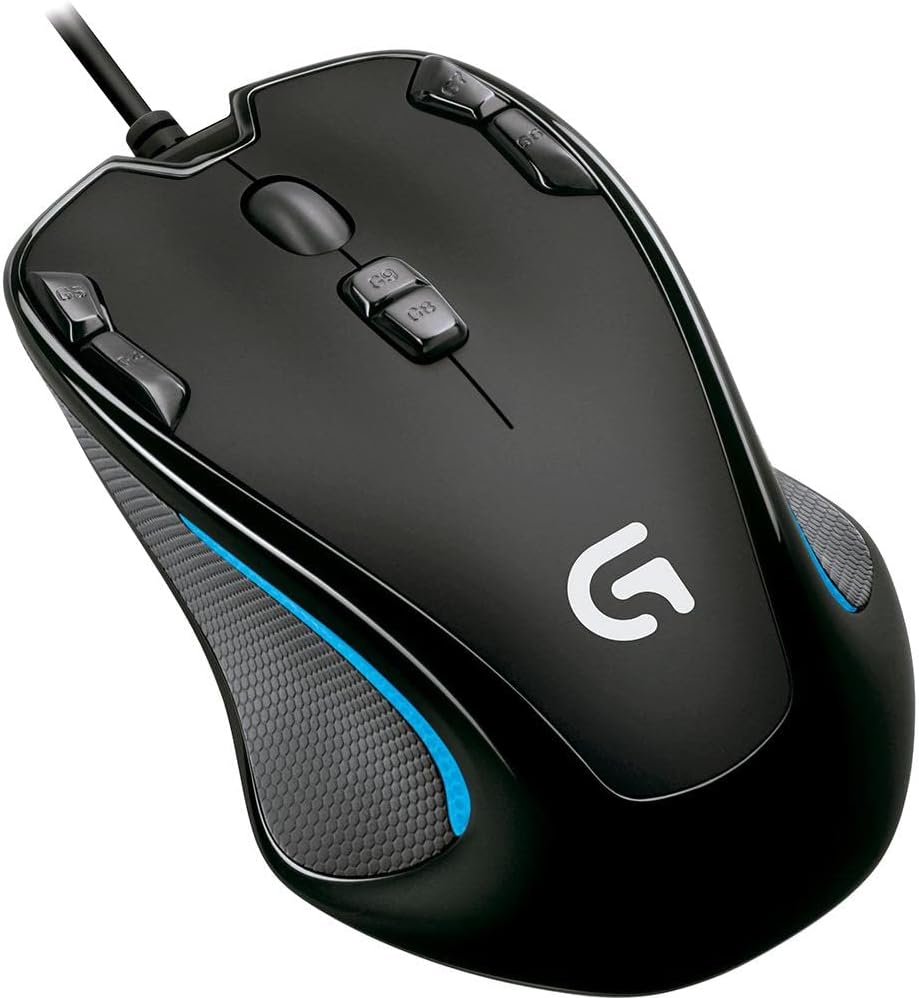
Figure 1: Logitech G300 Gaming Mouse. This image shows the top-down view of the black mouse with blue accents, highlighting its symmetrical design and the placement of its primary buttons and scroll wheel.
2. パッケージ内容
The Logitech G300 Gaming Mouse package includes the following items:
- ロジクール G300 ゲーミングマウス
- ユーザードキュメント
3. セットアップ
3.1 マウスの接続
To connect your Logitech G300 Gaming Mouse:
- コンピューターで使用可能なUSBポートを見つけます。
- Insert the USB connector of the G300 mouse into the USB port.
- Your operating system should automatically detect the mouse.

図2: 前面 view of the Logitech G300 Gaming Mouse, showing the integrated USB cable for connection to a computer.
3.2 ソフトウェアのインストール(オプション)
For full functionality, including programmable controls and profile management, it is recommended to install the Logitech Gaming Software.
- Download the latest Logitech Gaming Software from ロジクール.com/ダウンロード.
- 画面の指示に従ってインストールを完了します。
- Note: Some profile settings require Logitech Gaming Software to be enabled and are not supported on Linux and earlier Windows-based operating systems.
4. 操作手順
4.1 プログラム可能な制御
The Logitech G300 features nine programmable controls, allowing you to assign keyboard commands or macros to buttons for quick access. These controls are strategically placed for easy reach during use.

図3:上 view of the Logitech G300 Gaming Mouse, illustrating the placement of the nine programmable buttons (G4, G5, G6, G7, G8, G9, and the standard left, right, and middle click).
4.2 Onboard Memory Profiles
The mouse can store up to three game or player profiles directly on its onboard memory. This allows you to use your customized settings on different computers without needing to reconfigure them, provided the Logitech Gaming Software is installed on the host system for full functionality.
4.3 Assignable Color Lighting
Each stored profile can be assigned a unique color. This visual indicator helps you quickly identify which profile 現在アクティブです。
4.4 両利き対応設計
The G300 features a symmetrical, sculpted shape designed for comfort in either hand, accommodating both left and right-handed users for extended periods of use.

図4:側面 view of the Logitech G300 Gaming Mouse, illustrating its ergonomic and ambidextrous design, with textured grip areas.
4.5 Gaming-Grade Optical Sensor
The mouse is equipped with a 2500 DPI optical sensor that accurately tracks both slow and fast hand movements across various surfaces, providing responsive and precise cursor control.
5.ソフトウェア構成
The Logitech Gaming Software provides an intuitive interface for customizing your G300 mouse:
- 簡単な設定: Simply drag and drop commands onto the mouse buttons displayed on the software screen to assign functions.
- Automatic Game Detection: The software can automatically detect the game you are playing and apply custom configurations specific to that game.
6. 仕様

Figure 5: Dimensions of the Logitech G300 Gaming Mouse, showing a length of 4.88 inches and a width of 3.03 inches.
| 特徴 | 詳細 |
|---|---|
| 製品寸法 | 8.37 x 2.44 x 6.31インチ |
| アイテム重量 | 7.2オンス |
| モデル番号 | 910-002358 |
| ブランド | ロジテック |
| 色 | 黒に青のアクセント |
| 接続技術 | USB (有線) |
| 動き検出技術 | 光学 |
| 最大解像度 | 2500dpi |
| プログラム可能なボタン | 9 |
| Onboard Memory Profiles | 3 |

図6:下 view of the Logitech G300 Gaming Mouse, displaying regulatory marks and model information, including the optical sensor.
7. 互換性
The Logitech G300 Gaming Mouse is compatible with:
- Windows-based PC: Windows XP, Windows Vista, or Windows 7
- USBポート
- オプションのソフトウェアをダウンロードするためのインターネット接続
8。 トラブルシューティング
If you encounter issues with your Logitech G300 Gaming Mouse, consider the following basic troubleshooting steps:
- 応答なし: Ensure the USB cable is securely connected to a functioning USB port on your computer. Try a different USB port.
- ソフトウェアの問題: If programmable buttons or profiles are not working as expected, ensure the Logitech Gaming Software is installed correctly and is up to date. Restart your computer after software installation or updates.
- 一貫性のない追跡: Ensure the mouse sensor is clean and free of debris. Use the mouse on a suitable surface (e.g., a mouse pad).
- プロfile 読み込まれていません: Verify that the Logitech Gaming Software is running in the background, as some profile settings require it.
9. 保証とサポート
9.1 保証情報
The Logitech G300 Gaming Mouse comes with a 3年間のハードウェア限定保証. For detailed terms and conditions, please refer to the warranty documentation included with your product or visit the official Logitech webサイト。
9.2 カスタマーサポート
さらに詳しいサポート、技術サポート、または追加リソースにアクセスするには、ロジクールの公式サポートにアクセスしてください。 webサイト: