
導入
This manual provides detailed instructions for the installation, operation, and maintenance of your GIGABYTE GA-990FXA-UD3 motherboard. Please read this manual thoroughly before proceeding with installation or use to ensure proper functionality and safety.
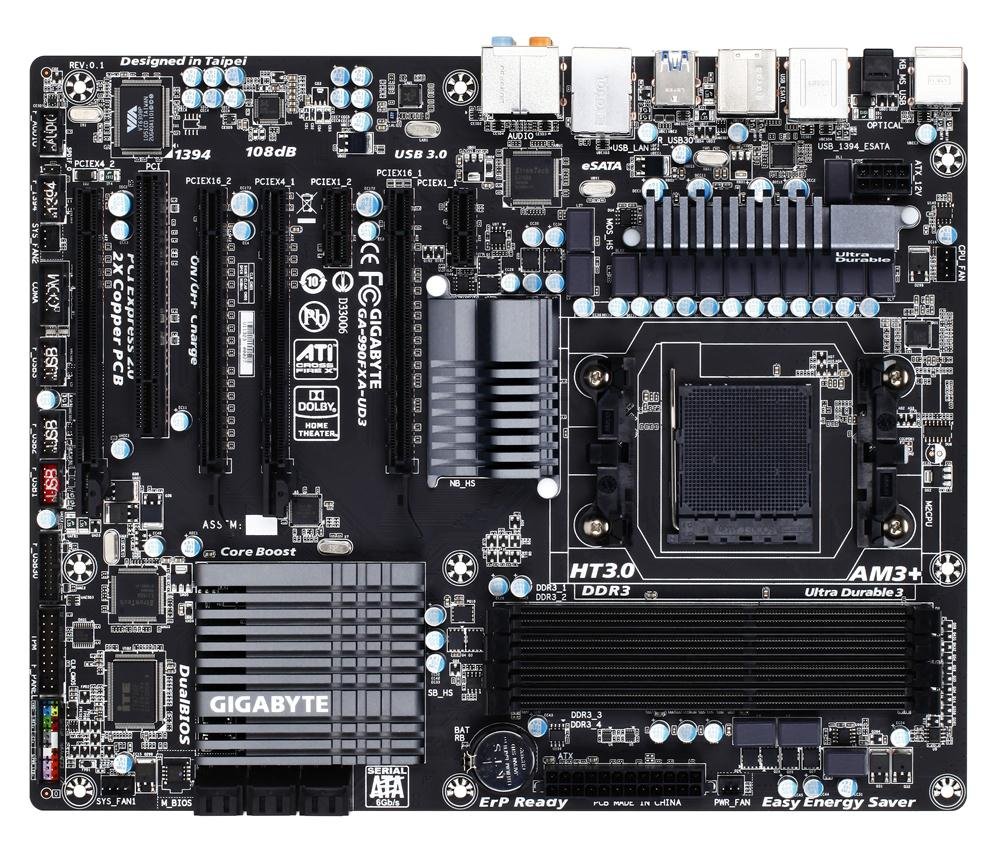
Image showing the GIGABYTE GA-990FXA-UD3 motherboard with its black and gray color scheme, highlighting the CPU socket, DIMM slots, and PCIe slots.
製品終了view
The GIGABYTE GA-990FXA-UD3 is an ATX motherboard designed for AMD AM3+ and AM3 processors. It features the AMD 990FX and SB950 chipsets, offering robust performance and extensive connectivity options for building a high-performance personal computer.
主な特徴:
- Supports AMD AM3+ FX/AM3 Phenom II series processors.
- Advanced 8+2 phase CPU VRM power design for high-TDP CPU support.
- Multiple PCI-E 2.0 interfaces for 2-way AMD CrossFireX and NVIDIA SLI multi-graphics support.
- AMD SB950 provides 6 native SATA 6Gb/s ports with RAID 0, 1, 5, 10 support.
- Integrated USB 3.0 with superfast transfer rates of up to 5 Gbps.
- GIGABYTE 3x USB Power with On/Off Charge USB ports.
- Ultra Durable 3 Classic Technology for enhanced durability and lower operating temperatures.
- Realtek ALC889 codec with High Definition Audio and Dolby Home Theater support.
- Patented DualBIOS with Hybrid EFI technology for 3TB+ HDD support.
設定
パッケージ内容:
マザーボード パッケージにすべてのアイテムが揃っていることを確認します。
- GIGABYTE GA-990FXA-UD3 Motherboard
- ユーザーマニュアル
- ドライバCD
- SATA 6Gb/s Cables (typically 2-4)
- I / Oシールド
- SLI Bridge Connector (for multi-GPU configurations)
安全情報:
- コンポーネントの取り付けまたは取り外しを行う前に、必ず電源コードを壁のコンセントから抜いてください。
- 静電気放電 (ESD) によるコンポーネントの損傷を防ぐために、静電気防止リスト ストラップを着用してください。
- コンポーネントの端を扱い、ピンや回路に触れないようにしてください。
- コンピューターケース内の換気が適切であることを確認してください。
Motherboard Layout and Connectors:
マザーボード上のさまざまなコネクタとコンポーネントについて理解しておきましょう。
- CPU Socket (AM3+): Located centrally, for installing your AMD processor.
- DDR3 DIMM Sockets: Four 1.5V DDR3 sockets for system memory, supporting up to 32 GB.
- PCI Express x16 Slots: Two slots for graphics cards, supporting 2-Way CrossFireX and SLI.
- PCI Express x1/x4 Slots: For expansion cards like sound cards or network adapters.
- PCI スロット: レガシー拡張カード用。
- SATA 6Gb/s コネクタ: Six ports for connecting storage devices (HDDs, SSDs).
- USB ヘッダー: Internal headers for additional USB 2.0/1.1 and USB 3.0/2.0 ports.
- フロントパネルヘッダー: For connecting case buttons, LEDs, and front audio/USB ports.
- バックパネルコネクタ:
- PS/1 キーボード/マウス ポート x 2
- 1 x オプティカル S/PDIF アウト コネクタ
- 1 x IEEE 1394 port
- 8 x USB 2.0 / 1.1ポート
- 2 x USB 3.0 / 2.0ポート
- 2 x eSATA 6Gb/s connectors
- 1 x RJ-45LANポート
- オーディオジャック×6
インストール手順:
- ケースを準備する: I/O シールドをコンピューター ケースの背面開口部に取り付けます。
- CPU をインストールします。 Open the CPU socket lever, align the CPU with the socket (match the golden triangle on the CPU to the triangle on the socket), gently place the CPU into the socket, and close the lever.
- CPU クーラーを取り付けます。 Follow the cooler manufacturer's instructions to install the CPU cooler onto the motherboard. Connect the CPU fan cable to the CPU_FAN header.
- メモリモジュールをインストールします。 Open the clips on the DIMM slots. Align the memory module notch with the slot key, insert the module firmly until the clips snap into place. For dual-channel operation, refer to the motherboard manual for correct slot pairing.
- マザーボードをマウントします。 ネジ穴とスタンドオフの位置を合わせながら、マザーボードをケースに慎重に入れ、ネジで固定します。
- Install Graphics Card(s): Insert your PCI Express graphics card(s) into the appropriate PCIe x16 slot(s) until it clicks into place. Secure with a screw or retention clip.
- ストレージデバイスをインストールします。 Connect your SATA HDDs/SSDs to the SATA 6Gb/s ports using the provided SATA cables.
- 電源の接続: Connect the 24-pin ATX main power connector and the 8-pin ATX 12V power connector from your power supply to the motherboard. Connect power to graphics cards and storage devices.
- フロントパネルケーブルを接続します。 Connect the power button, reset button, HDD LED, power LED, and front panel audio/USB cables to their respective headers on the motherboard.
オペレーティング
BIOS設定:
The BIOS (Basic Input/Output System) is firmware that initializes hardware during the boot process. To enter the BIOS setup utility, press the 削除 key repeatedly during system startup. Here you can configure various system settings such as boot order, date/time, CPU/memory settings, and enable/disable integrated peripherals. The GA-990FXA-UD3 features GIGABYTE's DualBIOS with Hybrid EFI technology, providing redundancy and support for large hard drives.
ドライバーのインストール:
After installing your operating system, install the necessary drivers for the motherboard's components. You can use the driver CD included in your package or download the latest drivers from the official GIGABYTE web地点 (ギガバイト) for optimal performance and compatibility.
メンテナンス
- 清潔に保ちます: Regularly clean dust from the motherboard and components using compressed air. Ensure fans are free of obstructions.
- BIOS アップデート: 定期的にGIGABYTEをチェックしてください website for BIOS updates. BIOS updates can improve system stability, add support for new hardware, or fix bugs. Follow GIGABYTE's instructions carefully when updating the BIOS.
- 接続を確認してください: Ensure all power cables, data cables, and expansion cards are securely seated. Loose connections can cause intermittent issues.
トラブルシューティング
- 電源なし: Ensure the power supply is connected correctly to the motherboard (24-pin and 8-pin connectors) and that the power supply switch is on. Check front panel power button connection.
- 表示なし: Verify that the graphics card is properly seated in its PCIe slot and that all necessary power connectors are attached. Ensure the monitor cable is securely connected to the graphics card.
- システムの起動に失敗する: Check memory modules are correctly installed. Try booting with only one memory module. Verify boot order in BIOS.
- Unexplained Slow Boot Times: Some users have reported slow boot times with this motherboard, even with SSDs. Ensure your BIOS is updated to the latest stable version. Verify that the SSD/HDD is set as the first boot device in the BIOS.
- Linux Compatibility (IOMMU/USB/Network Issues): For Linux users experiencing issues with network or USB 2.0 ports, it may be necessary to disable IOMMU in the BIOS and add "iommu=soft" to your GRUB boot options.
- オーバークロックの不安定性: If overclocking, ensure adequate cooling and gradually increase voltages and frequencies. Refer to online resources and community forums for stable overclocking profiles for your specific CPU and memory.
- Audio Crackling: If experiencing audio crackling, try reinstalling the audio drivers. Ensure no conflicting audio software is running.
仕様
| 特徴 | 仕様 |
|---|---|
| CPUソケット | ソケットAM3+ |
| 互換性のあるプロセッサ | AMD AM3+ FX / AM3 Phenom II / Athlon II series processors |
| チップセット | AMD 990FX / SB950 |
| メモリ | 4 x DDR3 DIMM sockets, up to 32 GB, DDR3 2000(O.C.)/1866/1600/1333/1066 MHz |
| 拡張スロット | 2 x PCI Express x16, 1 x PCI Express x4, 2 x PCI Express x1, 1 x PCI |
| ストレージインターフェース | 6 x SATA 6Gb/s (RAID 0, 1, 5, 10, JBOD), 2 x eSATA 6Gb/s (RAID 0, 1) |
| USBポート | Up to 14 x USB 2.0/1.1, Up to 4 x USB 3.0/2.0 |
| オーディオ | Realtek ALC889 codec, High Definition Audio, Dolby Home Theater, 2/4/5.1/7.1-channel |
| 無線LAN | 10/100/1000 メガビット |
| フォームファクター | ATTX |
| 寸法 | 13×11×3インチ(製品寸法) |
| 重さ | 3.6ポンド |
保証とサポート
GIGABYTE製品には限定保証が付いています。製品に付属の保証書、またはGIGABYTE公式ウェブサイトをご覧ください。 website for detailed warranty terms and conditions. For technical support, driver downloads, and further assistance, please visit the GIGABYTE support page at www.gigabyte.com/サポート.