
1. はじめに
The EDUP EP-MS150N is a 150Mbps Wireless USB WiFi Adapter designed to provide high-speed wireless connectivity for your desktop or laptop computer. Featuring an external 5dBi antenna, it enhances signal reception and transmission, ensuring a stable and reliable connection to your wireless network. This adapter supports IEEE 802.11n, 802.11g, and 802.11b standards, operating on the 2.4 GHz frequency band.
2.セットアップガイド
2.1 パッケージ内容
- EDUP EP-MS150N Wireless USB WiFi Adapter
- Driver CD (may vary by package)
- クイックインストールガイド
2.2 ハードウェアのインストール
- アダプタを挿入します: Locate an available USB port on your computer. Carefully insert the EDUP EP-MS150N USB WiFi Adapter into the USB port. Ensure it is firmly seated.
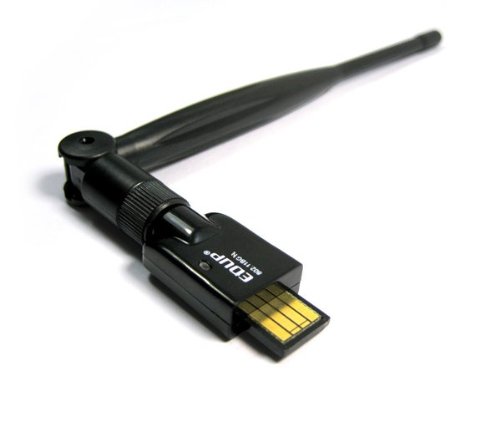
Image: The EDUP EP-MS150N Wireless USB WiFi Adapter, showing its compact design and USB connector, ready for insertion into a computer's USB port.
2.3 ドライバのインストール
For optimal performance and compatibility, it is recommended to install the latest drivers for your operating system.
- ドライバー CD の使用: If your package includes a driver CD, insert it into your computer's CD-ROM drive. Follow the on-screen instructions to install the drivers.
- オンラインでドライバーをダウンロードする: If you do not have a CD drive or wish to obtain the latest drivers, visit the official EDUP support website. Navigate to the support section, find your model (EP-MS150N), and download the appropriate drivers for your operating system (Windows, macOS, Linux). Run the downloaded installer and follow the prompts.
- インストールの確認: After installation, check your computer's Device Manager (Windows) or System Information (macOS/Linux) to ensure the adapter is recognized and functioning correctly.
2.4 ワイヤレスネットワークへの接続
- ネットワーク設定にアクセスします: On your computer, open the wireless network settings. This is typically found in the system tray (Windows) or menu bar (macOS/Linux).
- ネットワークをスキャン: The adapter will automatically scan for available wireless networks.
- ネットワークを選択: Choose your desired wireless network (SSID) from the list.
- パスワードを入力してください: If prompted, enter the network security key or password (WPA/WPA2-PSK).
- 接続する: Click 'Connect' to establish a connection. Once connected, you should have internet access.
3. 操作手順
3.1 Checking Connection Status
To verify your wireless connection status:
- ウィンドウズ: Click the network icon in the system tray. It will display the name of the connected network and its status.
- MacOSの: Click the Wi-Fi icon in the menu bar. It will show the connected network.
- リナックス: Check the network manager applet in your desktop environment.
3.2 Disconnecting from a Network
To disconnect from a wireless network:
- Access your network settings as described above.
- Select the currently connected network.
- Choose the 'Disconnect' option.
4. メンテナンス
4.1 ドライバーの更新
Periodically check the EDUP official website for updated drivers. Keeping your drivers current can improve performance, stability, and compatibility with new operating system versions or network technologies.
4.2 身体的ケア
- アダプターは清潔に保ち、ほこりが付かないようにしてください。清掃には柔らかく乾いた布をご使用ください。
- アダプタを極端な温度、湿度、または直射日光にさらさないでください。
- アダプターを自分で分解したり修理したりしないでください。保証が無効になります。
5。 トラブルシューティング
5.1 インターネットアクセスなし
- ルーターの確認: ワイヤレス ルーターの電源がオンになっていて、正しく機能していることを確認します。
- 接続を確認します: Confirm that the adapter is properly connected to your computer's USB port and that you are connected to the correct wireless network.
- デバイスを再起動します。 コンピュータとワイヤレス ルーターを再起動してみてください。
- ドライバーチェック: Ensure the drivers are correctly installed and up to date. Reinstall them if necessary.
5.2 接続速度が遅い
- 信号強度: Move closer to your wireless router to improve signal strength. Obstacles like walls and large appliances can degrade signal quality.
- 干渉: Other electronic devices (e.g., cordless phones, microwaves) operating on the 2.4 GHz band can cause interference. Try changing your router's wireless channel.
- ルーター設定: Ensure your router is configured for optimal performance (e.g., using WPA2 encryption, appropriate channel width).
- ドライバーの更新: 最新のドライバーがインストールされていることを確認してください。
5.3 アダプタが検出されない
- USBポート: アダプタをコンピュータの別の USB ポートに接続してみてください。
- コンピューターを再起動: 多くの場合、単純な再起動で検出の問題を解決できます。
- ドライバーのインストール: Reinstall the drivers for the adapter.
- デバイス マネージャー (Windows): Check Device Manager to see if the adapter appears under 'Network adapters' or 'Other devices'. If it has a yellow exclamation mark, reinstall drivers.
6. 仕様
| モデル番号 | EP-MS150N |
| ブランド | 教育 |
| ワイヤレス規格 | IEEE 802.11n、IEEE 802.11g、IEEE 802.11b |
| 周波数範囲 | 2.4~2.4835GHz |
| ワイヤレス速度 | 最大150Mbps |
| アンテナタイプ | 外部 5dBi アンテナ |
| インタフェース | USB |
| Effective Working Distance | 屋内最大200メートル、屋外最大830メートル(環境により異なります) |
| 欧州連合 | 847231017403 |
7.保証とサポート
7.1製品保証
EDUP products typically come with a limited warranty. Please refer to the warranty card included with your product or visit the official EDUP website for detailed warranty terms and conditions specific to the EP-MS150N model. Keep your purchase receipt as proof of purchase for warranty claims.
7.2 テクニカルサポート
For technical assistance, driver downloads, or further inquiries, please visit the official EDUP support website. You may find FAQs, troubleshooting guides, and contact information for customer service there. When contacting support, please have your product model number (EP-MS150N) and a description of your issue ready.