
導入
The GIGABYTE GM-M7600 is a wireless precision optical mouse designed for comfortable and reliable use. This manual provides instructions for setting up, operating, maintaining, and troubleshooting your device.
パッケージ内容
パッケージの内容をチェックして、すべてのアイテムが揃っていることを確認してください。
- GIGABYTE GM-M7600 Wireless Optical Mouse
- Portable Nano USB Receiver
- 単2電池XNUMX本
設定
1. 電池の取り付け
The GM-M7600 mouse requires two AAA batteries for operation. The batteries are included in the package.
- マウスの裏側にある電池ボックスのカバーを見つけます。
- カバーをゆっくりスライドまたは持ち上げてコンパートメントを開きます。
- 単 4 電池 2 本を挿入し、プラス (+) とマイナス (-) の端子がコンパートメント内のマークと正しく揃っていることを確認します。
- 電池カバーをしっかりと閉じてください。
2. USBレシーバーの接続
The mouse connects to your computer via a portable Nano USB receiver.
- Locate the Nano USB receiver. It may be stored inside the mouse's battery compartment or packaged separately.
- Plug the Nano USB receiver into an available USB port on your computer (Laptop or Personal Computer).
- Your operating system (e.g., Windows XP, Linux) should automatically detect and install the necessary drivers. This process may take a few moments.
- ドライバーがインストールされると、マウスは使用できるようになります。
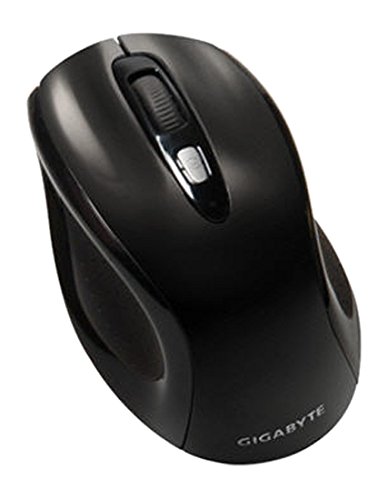
図1: GIGABYTE GM-M7600 Wireless Optical Mouse. This image displays the ergonomic design of the mouse, highlighting its form factor and the location of its buttons. The Nano USB receiver is typically stored within the mouse or connected to a computer's USB port.
操作手順
1.電源のオン/オフ
The mouse typically has a power switch on its underside. Slide the switch to the 'ON' position to activate the mouse. Slide it to 'OFF' when not in use to conserve battery life.
2. DPI(感度)の調整
The GM-M7600 features an adjustable DPI switch, allowing you to change the mouse sensitivity between 800 DPI and 1600 DPI. This switch is usually located near the scroll wheel. Press the DPI button to toggle between the two sensitivity settings.
3. マウスの基本機能
- 左クリック: アイテムの選択、開くためのプライマリボタン files、およびソフトウェアとの対話。
- 右クリック: コンテキスト メニューや追加オプションにアクセスするための 2 番目のボタン。
- スクロールホイール: 文書をスクロールしたり、 web ページ。中クリックボタンとしても機能します。
メンテナンス
1. 清掃
最適なパフォーマンスと外観を維持するには:
- Disconnect the mouse from your computer and turn off the power switch.
- 柔らかく糸くずの出ない布で軽く拭き取ってください。ampマウスの表面を水または中性洗浄液で拭いてください。
- 強力な化学薬品や研磨剤入りの洗剤を使用したり、マウスに液体を直接吹きかけたりしないでください。
- Clean the optical sensor area on the underside of the mouse with a dry cotton swab to remove any dust or debris.
2. バッテリーの交換
When the mouse performance degrades or it stops responding, it may be time to replace the batteries.
- 電源スイッチを使用してマウスの電源をオフにします。
- Open the battery compartment as described in the 'Installing Batteries' section.
- 古い単4電池を取り外します。
- 正しい極性 (+/-) に注意して、新しい AAA 電池 2 本を挿入します。
- Close the battery compartment and turn the mouse back on.
トラブルシューティング
If you encounter issues with your GIGABYTE GM-M7600 mouse, try the following solutions:
- マウスが反応しない:
- マウスの電源がオンになっていることを確認してください。
- 電池が正しく取り付けられ、十分に充電されていることを確認してください。必要に応じて交換してください。
- Nano USBレシーバーがコンピュータの正常に動作するUSBポートにしっかりと接続されていることを確認してください。別のUSBポートでお試しください。
- コンピュータを再起動します。
- カーソルの動きが不規則:
- マウスの裏側にある光学センサーを清掃します。
- マウスを適切な表面で使用していることを確認してください。反射率の高い表面や透明な表面は避けてください。
- Check for any wireless interference. Move the mouse closer to the receiver or away from other wireless devices.
- DPI switch not working:
- マウスの電源がオンになっていて接続されていることを確認します。
- DPIボタンをしっかりと押します。
仕様
| モデル名 | GM-M7600 |
| ブランド | ギガバイト |
| 接続技術 | 2.4GHz Radio Frequency Wireless |
| 動き検出 | 光学 |
| 調整可能なDPI | 800 / 1600DPI |
| ボタンの数 | 3(左、右、スクロールホイール/中クリック) |
| 電源 | 単2電池XNUMX本(付属) |
| レシーバータイプ | Portable Nano USB Receiver |
| 対応デバイス | ラップトップ、パソコン |
| オペレーティング システムのサポート | Linux、Windows XP |
| エンクロージャ材質 | Plastic with Rubberized Finish |
| 色 | 黒 |
保証とサポート
For warranty information and technical support, please refer to the warranty card included with your product or visit the official GIGABYTE webサイト。 保証請求に備えて購入時のレシートを保管しておいてください。