
1. はじめに
Welcome to the user manual for your Logitech M705 Marathon Wireless Mouse. This document provides essential information for setting up, operating, and maintaining your device, ensuring optimal performance and longevity. The M705 mouse is designed for comfort and efficiency, featuring a long battery life and customizable controls for enhanced productivity.
2.製品オーバーview
主な特徴
- バッテリー寿命の延長: Enjoy up to 3 years of battery life, reducing the need for frequent replacements.
- 人間工学に基づいたデザイン: Sculpted to fit the natural curve of your right hand, providing comfort during prolonged use.
- 超高速スクロール: Navigate through long documents and web pages with a single spin of the scroll wheel, or switch to click-to-click scrolling for precision.
- プログラム可能なボタン: Five customizable buttons, including forward/back thumb buttons, allow for personalized shortcuts and enhanced control.
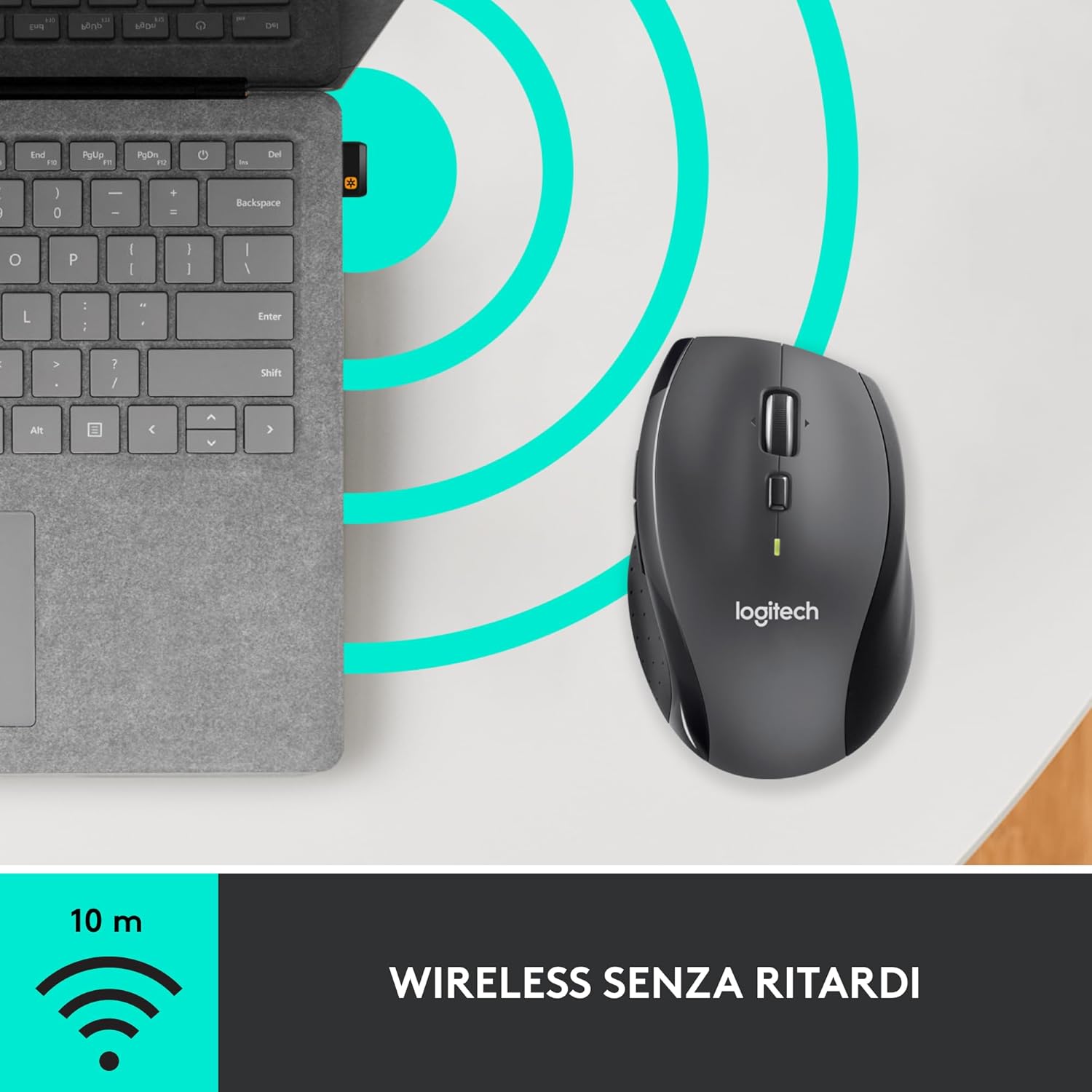
- ユニファイングレシーバー: A small USB Unifying receiver connects up to six compatible Logitech devices, freeing up USB ports.
- 幅広い互換性: Windows、macOS、Chrome OS、Linux オペレーティング システムと互換性があります。
パッケージ内容
The Logitech M705 Marathon Wireless Mouse package typically includes:
- Logitech M705ワイヤレスマウス
- ロジクール ユニファイング USB レシーバー
- 2 AA Alkaline Batteries (may vary by region/packaging)

3. セットアップ手順
3.1. 電池の取り付け
- Turn the mouse over and locate the battery compartment cover on the underside.
- Press the release button or slide the cover to open the compartment.
- 極性 (+/-) が正しいことを確認して、単三電池 2 本を挿入します。
- 電池ボックスのカバーを取り付けます。

3.2. USB Unifyingレシーバーの接続
- Locate the small USB Unifying receiver. It may be stored inside the battery compartment of the mouse.
- USBレシーバーをコンピューターの使用可能なUSBポートに接続します。
- マウスの底面にあるオン/オフ スイッチを使用して、マウスの電源をオンにします。
- Your computer should automatically detect the mouse. If not, visit the Logitech support website for driver installation.
4. 操作手順
4.1. マウスの基本機能
The M705 mouse features standard left and right-click buttons, a scroll wheel, and additional programmable buttons.

4.2. 超高速スクロール
The scroll wheel offers two modes:
- 超高速モード: Press the button directly below the scroll wheel to unlock it for smooth, rapid scrolling through long documents or web ページ。
- クリックツークリックモード: Press the button again to engage precise, stepped scrolling, ideal for navigating lists or image galleries.

4.3. プログラム可能なボタン
The M705 features five programmable buttons, including two thumb buttons and tilt-scroll functionality. These can be customized using the Logitech Options software.

5. カスタマイズ
To unlock the full potential of your M705 mouse, download and install the Logitech Options software from the official Logitech webサイト。このソフトウェアを使用すると、次のことが可能になります。
- Assign custom functions to the five programmable buttons.
- トラッキング速度(DPI)を調整します。
- Configure application-specific settings.
- バッテリーの状態を確認してください。

6. メンテナンス
6.1. 清掃
マウスを掃除するには、柔らかく糸くずの出ない布を使用してください。頑固な汚れには、軽くampen the cloth with water. Avoid using harsh chemicals or abrasive materials, as these can damage the mouse surface or internal components.
6.2. バッテリーの交換
When the battery indicator light on your mouse begins to flash or if performance degrades, it's time to replace the batteries. Follow the steps in Section 3.1 to replace the two AA batteries. Dispose of old batteries responsibly according to local regulations.
7。 トラブルシューティング
7.1. マウスが反応しない
- マウスがオンになっていることを確認します。
- 電池レベルを確認し、必要に応じて電池を交換してください。
- Verify the USB Unifying receiver is securely plugged into a working USB port.
- 問題を切り分けるために、レシーバーを別の USB ポートまたは別のコンピューターに接続してみてください。
- USB ハブを使用している場合は、コンピューターに直接接続してみてください。
7.2. カーソルの不規則な動き
- マウスの裏側にある光学センサーを清掃します。
- Ensure you are using the mouse on a suitable surface. Highly reflective or transparent surfaces may cause tracking issues. A mouse pad is recommended.
- Check for interference from other wireless devices. Move the mouse closer to the USB receiver.
7.3. Unifying Receiver Issues
If the mouse loses connection or you need to pair it with a new receiver, download the Logitech Unifying Software from the Logitech support website. This software guides you through the pairing process.
8. 仕様
| 特徴 | 詳細 |
|---|---|
| ブランド | ロジテック |
| モデル名 | M705 |
| モデル番号 | 910-001949 |
| 接続技術 | Wireless (2.4 GHz USB Unifying Receiver) |
| 動き検出技術 | レーザ |
| 動きの解決 | 1000 DPI (up to 3200 DPI maximum resolution) |
| ボタンの数 | 5つのプログラム可能なボタン |
| 電源 | Battery (2 x AA Alkaline) |
| 平均バッテリー寿命 | 最長3年 |
| ワイヤレス範囲 | 最大10メートル |
| フォームファクター | 右利き用エルゴノミクス |
| 寸法(長さ×幅×高さ) | 20 x 13 x 12 cm(製品パッケージ寸法) |
| 重さ | 136グラム |
| 互換性のあるオペレーティングシステム | Windows 7, 8, 10; macOS 10.11 or later; Chrome OS; Linux |
9. 保証とサポート
詳細な保証情報とテクニカルサポートについては、ロジクールの公式ウェブサイトをご覧ください。 webロジクールのウェブサイトをご覧いただくか、カスタマーサービスまでお問い合わせください。保証請求の際に購入証明書を保管してください。