
1. はじめに
Thank you for choosing the LiteOn eSAU108-97 External Recording DVD Drive. This portable optical drive offers reliable DVD and CD reading and writing capabilities, powered conveniently via a single USB connection. It is designed for use with laptops and other compatible devices, providing a compact and efficient solution for your optical media needs.
デバイスが適切に動作し、寿命が最大限に延びるように、デバイスを使用する前にこのマニュアルをよくお読みください。
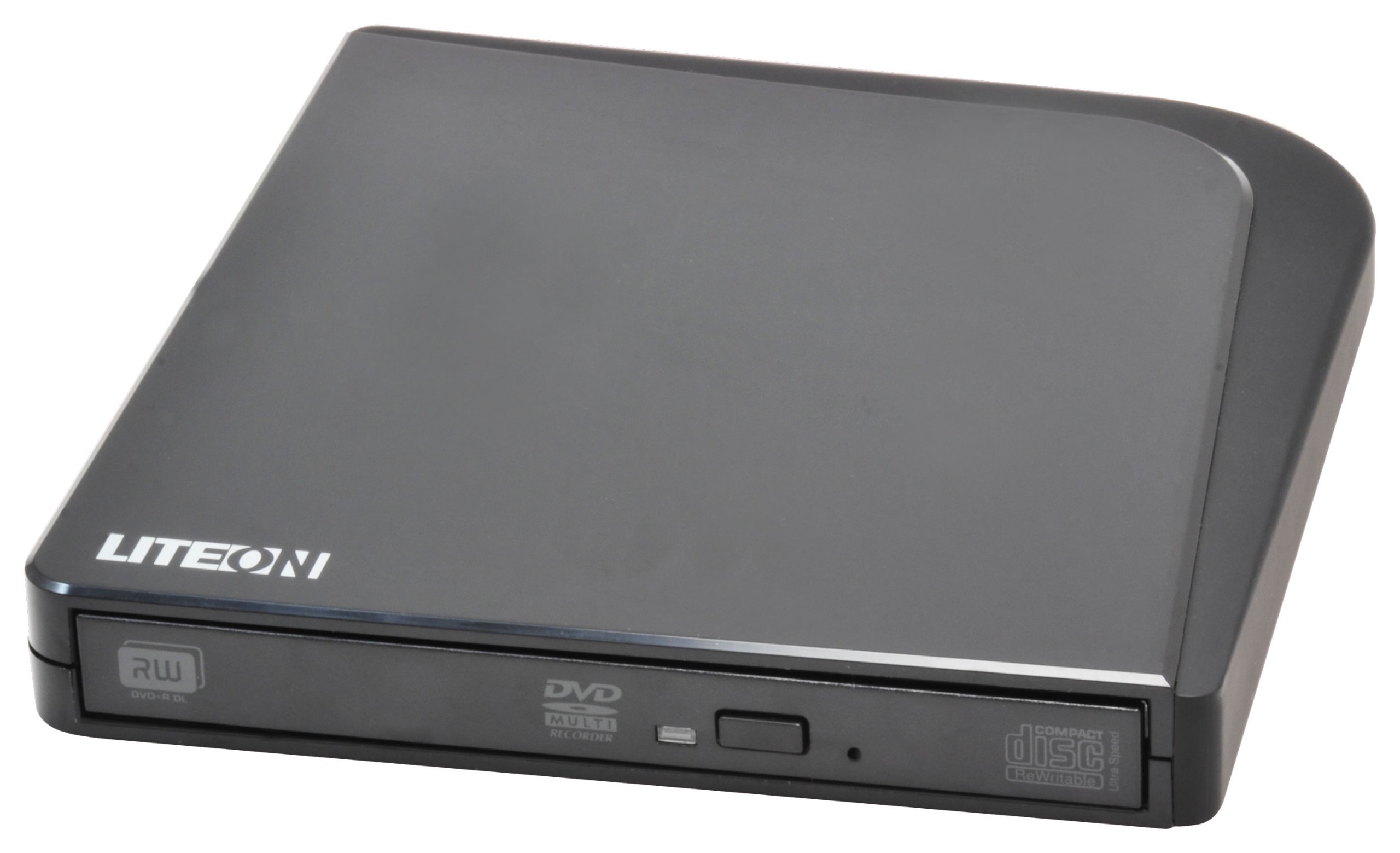
図1: LiteOn eSAU108-97 External Recording DVD Drive. This image displays the compact, black external DVD drive, highlighting its sleek design and the USB port for connectivity.
2. パッケージ内容
パッケージの内容をよくご確認ください。不足品や破損品がございましたら、すぐに販売店までご連絡ください。
- LiteOn eSAU108-97 External Recording DVD Drive
- USB Data/Power Cable
- クイックスタートガイド(本書)
3. セットアップ
3.1 システム要件
- Operating System: Windows XP/Vista/7/8/10/11, macOS 10.x or later, Linux (kernel 2.6 or later)
- 利用可能なUSB 2.0または3.0ポート
- 最小512MBのRAM
- Minimum 10GB free hard disk space (for disc burning software and temporary files)
3.2 ドライブの接続
- Locate an available USB port on your laptop or computer.
- Connect the smaller end of the provided USB cable to the USB port on the LiteOn eSAU108-97 drive.
- Connect the larger end of the USB cable to the USB port on your computer.
- The drive is bus-powered, meaning it draws power directly from the USB port. No external power adapter is required.
- オペレーティングシステムは必要なドライバを自動的に検出し、インストールします。この処理には数分かかる場合があります。
3.3 ドライバのインストール
The LiteOn eSAU108-97 is a plug-and-play device. Most modern operating systems will automatically install the required drivers upon connection. No manual driver installation is typically needed. If the drive is not recognized, try connecting it to a different USB port or restarting your computer.
4. ドライブの操作
4.1 ディスクの読み込み
- ドライブの前面にある取り出しボタンを押して、ディスク トレイを開きます。
- Carefully place a CD or DVD onto the tray with the label side facing up. Ensure the disc is centered on the spindle.
- ディスクトレイをカチッと音がするまでゆっくりとドライブに押し込んでください。トレイを無理に押し込まないでください。
4.2 Playing/Reading Discs
Once a disc is loaded, your operating system may automatically prompt you to choose an action (e.g., play a movie, open files). If not, navigate to 'My Computer' or 'This PC' (Windows) or 'Finder' (macOS), locate the optical drive icon, and double-click it to access the disc's contents.
4.3 Recording/Burning Discs
To record data, music, or video onto a blank CD-R/RW or DVD-R/RW disc, you will need compatible disc burning software (e.g., Windows Media Player, Nero, Roxio, or built-in macOS utilities). Follow the instructions provided with your chosen software to perform burning operations.
4.4 Ejecting a Disc
- ソフトウェア取り出し: Right-click on the drive icon in 'My Computer'/'This PC' or 'Finder' and select 'Eject'.
- 手動取り出し: ドライブの前面にある取り出しボタンを押します。
- 緊急脱出: In case of power failure or if the eject button does not work, locate the small pinhole on the front of the drive. Insert a straightened paperclip into the pinhole and push gently until the tray partially opens. Then, pull the tray out manually.
5. メンテナンス
5.1 Cleaning the Drive
Keep the drive clean and free from dust. Use a soft, dry, lint-free cloth to wipe the exterior. Do not use liquid cleaners or abrasive materials. Avoid opening the drive casing, as this can damage internal components and void your warranty.
5.2 ディスクのクリーニング
Always handle discs by their edges. If a disc is dirty, gently wipe it from the center outwards with a soft, lint-free cloth. Do not use circular motions, as this can cause scratches. For stubborn smudges, use a specialized disc cleaning solution.
5.3 ストレージ
When not in use, store the drive in a cool, dry place, away from direct sunlight, extreme temperatures, and high humidity. Keep it protected from dust and physical impact.
6。 トラブルシューティング
| 問題 | 考えられる原因 | 解決 |
|---|---|---|
| ドライブがコンピュータに認識されない | Loose USB connection, insufficient power, driver issue, faulty USB port. | Ensure USB cable is securely connected. Try a different USB port. Restart your computer. Check Device Manager (Windows) or System Information (macOS) for the drive. |
| Disc not reading/writing | Dirty or scratched disc, incorrect disc type, faulty disc, drive lens dirty, incompatible software. | Clean the disc. Try a different disc. Ensure the disc type is compatible (CD-R/RW, DVD-R/RW). Use appropriate burning software. |
| ディスクトレイが開閉しない | Obstruction, mechanical issue, power issue. | Check for obstructions. Ensure the drive is powered (connected via USB). Use the emergency eject hole if necessary. |
| パフォーマンスが遅い | USB 1.1 port, background processes, fragmented hard drive. | Connect to a USB 2.0 or 3.0 port. Close unnecessary applications. Ensure your computer meets system requirements. |
7. 仕様
- モデル: eSAU108-97
- インタフェース: USB 2.0(USB 3.0と互換性あり)
- タイプ: External Portable DVD Drive
- ハードウェアプラットフォーム: ラップトップ
- 商品の重量: 約1.2ポンド(0.54kg)
- パッケージ寸法: 8.27 x 7.72 x 2.87 インチ (21 x 19.6 x 7.3 cm)
- 色: 黒
- キャッシュサイズ: 2MB
- 力: USBバスパワー
- サポートされているディスク形式: DVD-ROM, DVD-R, DVD-RW, DVD+R, DVD+RW, CD-ROM, CD-R, CD-RW
8. 保証とサポート
LiteOn products are designed and manufactured to the highest quality standards. This product is covered by a limited warranty from the date of purchase. Please refer to the warranty card included in your package or visit the official LiteOn web詳細な保証条件については、サイトをご覧ください。
For technical support, troubleshooting assistance, or service inquiries, please visit the LiteOn support website or contact their customer service department. Contact information can typically be found on the official LiteOn webサイトまたは製品のパッケージに記載されています。