
導入
This manual provides detailed instructions for the proper setup, operation, and maintenance of your Sharp EL-1607R Printing Calculator. Please read this manual thoroughly before using the calculator to ensure optimal performance and longevity.
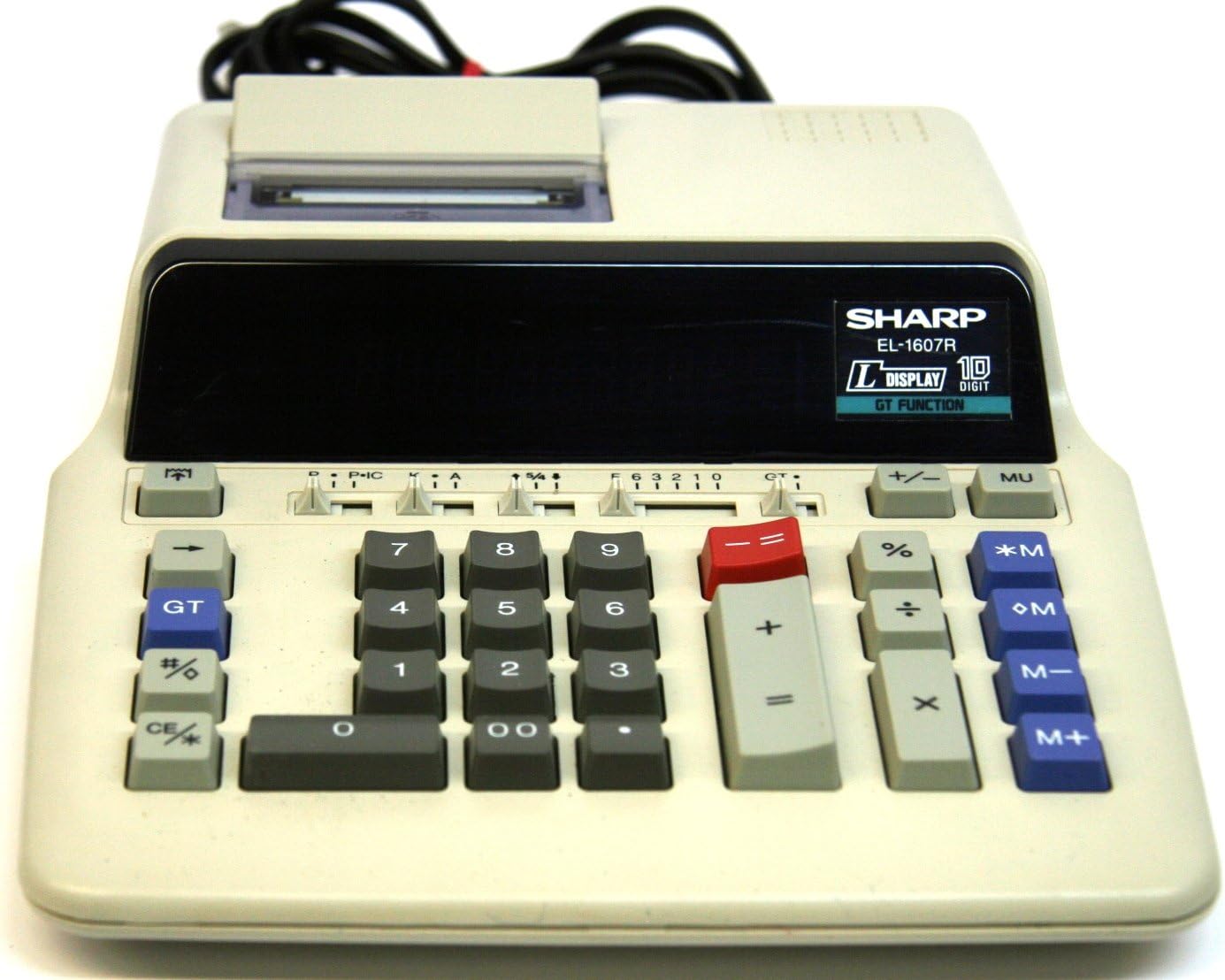
Figure 1: Sharp EL-1607R Printing Calculator Overview
This image displays the Sharp EL-1607R Printing Calculator, highlighting its compact design, the 10-digit display area, the numeric keypad, function keys, and the integrated paper roll printer at the top. The power cord is visible at the rear.
1. セットアップ
1.1電源接続
The Sharp EL-1607R calculator operates on AC power. Connect the power cord securely to the calculator's power input and then to a standard electrical outlet.
1.2 ロール紙の取り付け
- Open the printer cover located at the top rear of the calculator.
- Place a new paper roll into the compartment, ensuring the paper feeds from the bottom of the roll.
- 用紙の先端をプリンタのスロットに差し込み、前方から出てくるまで押し込みます。
- プリンターのカバーを閉じます。
Figure 2: Printer Compartment (Top View)
This image provides a closer look at the top section of the calculator, specifically the printer compartment where the paper roll is installed. The feed mechanism is visible.
1.3 インクローラーの取り付け/交換
The EL-1607R uses a two-color ink roller for printing. If printing becomes faint or colors are incorrect, replace the ink roller.
- 電卓がオフになっていることを確認してください。
- プリンターのカバーを開きます。
- Carefully remove the old ink roller by lifting it out.
- Unpack the new ink roller and insert it into the designated slot, ensuring it clicks into place.
- プリンターのカバーを閉じます。
2. 操作手順
2.1 キーパッドのレイアウト
図3: キーパッドオーバーview
This image focuses on the main keypad of the Sharp EL-1607R, detailing the arrangement of numeric keys (0-9, 00), arithmetic operators (+, -, x, ÷), percentage (%), memory keys (*M, +M, -M, M+), Grand Total (GT), and clear keys (CE/C).
2.2 基本的な算術演算
- 加算(+): 最初の数字を入力し、 +2番目の数字を入力し、 =.
- 減算(-): 最初の数字を入力し、 -2番目の数字を入力し、 =.
- 乗算(x): 最初の数字を入力し、 x2番目の数字を入力し、 =.
- 割り算(÷): 最初の数字を入力し、 ÷2番目の数字を入力し、 =.
2.3 メモリ機能
The calculator includes independent memory functions:
- M +: 表示されている値をメモリに追加します。
- NS-: 表示されている値をメモリから減算します。
- *M (Memory Recall/Clear): Press once to recall the memory content. Press twice to clear the memory.
- OM (Memory Clear): メモリの内容をクリアします。
2.4 総計(GT)
の GT key accumulates the results of all calculations performed using the = キーを押します GT to display the grand total. Pressing GT again clears the grand total memory.
2.5パーセンtage Calculations (%)
パーセントを計算するにはtages、番号を入力して押す xパーセントを入力してくださいtage値を入力し、 %例えばample, to calculate 15% of 200: 200 x 15 % =
2.6 Decimal and Rounding Selectors
Located above the numeric keypad, these sliders control decimal places and rounding behavior.
- Decimal Selector (F, 6, 3, 2, 1, 0, A):
- F(フローティング): Decimal point floats automatically.
- 6, 3, 2, 1, 0: Sets the number of decimal places.
- A (Add Mode): Automatically adds a decimal point two places from the right for addition and subtraction.
- Rounding Selector (5/4, Cut, Up):
- 5/4 (Round Up/Down): 次の数字が 5 以上の場合は切り上げ、それ以外の場合は切り捨てます。
- カット: Truncates the number at the selected decimal place.
- 上: Always rounds up at the selected decimal place.
Figure 4: Decimal and Rounding Selectors
This image highlights the slider switches for decimal point selection (F, 6, 3, 2, 1, 0, A) and rounding control (5/4, Cut, Up) on the Sharp EL-1607R, located above the main numeric keys.
2.7 Item Count (IC)
の IC switch (often combined with P) enables or disables the item count feature, which tracks the number of entries in a calculation series.
2.8 Clear Entry / Clear All (CE/C)
の CE/C key has dual functionality:
- Press once to clear the last entered number (Clear Entry).
- Press twice to clear the entire calculation and reset the calculator (Clear All).
3. メンテナンス
3.1 クリーニング
電卓の外観と機能を維持するには:
- 柔らかい乾いた布で外側を拭きます。
- 頑固な汚れには、軽くamp布に水または刺激の少ない非研磨性の洗剤をつけて拭いてください。
- 強力な溶剤や研磨剤入りの洗剤は使用しないでください。
- Avoid spraying liquids directly onto the calculator.
3.2 消耗品の交換
Refer to sections 1.2 (Paper Roll Installation) and 1.3 (Ink Roller Installation/Replacement) for detailed instructions on replacing these components.
4。 トラブルシューティング
| 問題 | 考えられる原因 | 解決 |
|---|---|---|
| 電卓の電源が入りません。 | 電源が供給されていないか、接続が緩んでいます。 | Ensure the power cord is securely connected to both the calculator and a working electrical outlet. |
| Printing is faint or unclear. | Ink roller needs replacement. | Replace the ink roller as described in section 1.3. |
| Paper does not feed correctly. | Paper roll incorrectly installed or jammed. | Reinstall the paper roll correctly (section 1.2). Check for any paper jams and clear them carefully. |
| 計算結果が正しくありません。 | 小数点または四捨五入の設定が正しくありません。 | Verify the decimal and rounding selector settings (section 2.6). Clear all calculations using CE/C 二度。 |
5. 仕様
- モデル: EL-1607R (also known as EL2607RIII)
- 画面: 10桁蛍光表示管
- 印刷: 2-Color Printing
- 電源: AC Power (Note: Product specifications list 'Battery Powered'. The image shows a power cord, suggesting AC operation or an optional AC adapter for this model.)
- 寸法: 27.41 x 22 x 0.1 cm (Note: The 0.1 cm thickness may refer to packaging or a specific component, as the device itself is thicker.)
- 重さ: 2.83キロ
- メーカー: シャープ
- ASIN: B001VGD5PY
- 国際コード: 074000021075
6. 保証とサポート
For warranty information and technical support, please refer to the documentation included with your purchase or visit the official Sharp webサイトでご確認ください。保証請求の際は購入証明として領収書を保管してください。
メーカー: シャープ株式会社


