
導入
This manual provides instructions for the setup, operation, maintenance, and troubleshooting of your Microsoft Wireless Optical Mouse Blue, Model K80-00004. Please read this manual thoroughly before using your device.
箱の中身
パッケージにすべてのアイテムが揃っていることを確認します。
- Microsoft Wireless Optical Mouse
- ワイヤレス受信機
- 単三電池 2 本 (プリインストールまたは別途付属)
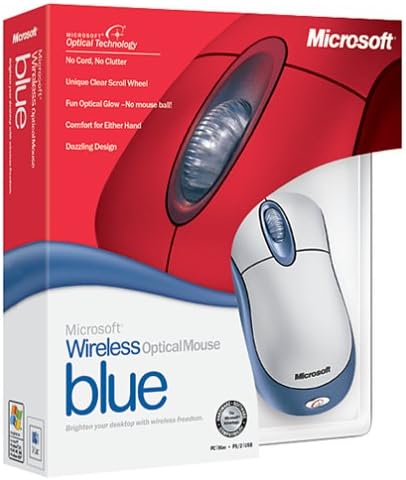
Image: Retail packaging of the Microsoft Wireless Optical Mouse Blue, showing the mouse and receiver.
設定
1.バッテリーを取り付けます
- マウスの下側にあるバッテリー収納部を見つけます。
- 電池ボックスのカバーを開きます。
- 極性 (+/-) が正しいことを確認して、単三電池 2 本を挿入します。
- 電池ボックスのカバーを閉じます。

画像: 正面 view of the Microsoft Wireless Optical Mouse Blue, showing the top buttons and scroll wheel. The battery compartment is on the underside.
2. Connect the Wireless Receiver
- USB ワイヤレス レシーバーをコンピューターの使用可能な USB ポートに接続します。
- Allow your operating system to detect and install the necessary drivers. This process is usually automatic.
- For optimal performance, ensure the receiver is placed at least 12 inches away from other wireless devices or large metal objects.
3. Optional Software Installation (IntelliPoint)
- While not required for basic functionality, installing Microsoft IntelliPoint software provides advanced customization options for your mouse buttons and scroll wheel.
- Refer to the Microsoft support website for the latest IntelliPoint software compatible with your operating system.
4. Set Orientation (Calibration)
- After initial setup, it is recommended to perform an "Orientation Set" or calibration if available through the IntelliPoint software or your operating system's mouse settings. This helps optimize tracking performance.
操作手順
The Microsoft Wireless Optical Mouse Blue is designed for comfortable and precise navigation.
基本機能
- 左クリック: アイテムの選択、開くためのプライマリボタン files、およびソフトウェアとの対話。
- 右クリック: コンテキスト メニューや追加オプションにアクセスするための 2 番目のボタン。
- スクロールホイール: ホイールを上下に回してドキュメントをスクロールし、 web pages. The scroll wheel may also function as a clickable button for additional commands, depending on software configuration.
ワイヤレス操作
- The mouse operates wirelessly up to 6 feet (approximately 1.8 meters) from its receiver.
- Optical technology scans the desktop surface for precise cursor movement without the need for a mouse pad on most surfaces.
- The mouse is designed for comfortable use with either the right or left hand.

画像: 斜め view of the Microsoft Wireless Optical Mouse Blue, highlighting its ergonomic shape and blue/silver design.
メンテナンス
バッテリー交換
- The mouse requires two AA batteries.
- When battery power is low, your computer may display a notification (if IntelliPoint software is installed) or mouse performance may degrade.
- Replace batteries as described in the "Install Batteries" section under Setup.
- 最適なパフォーマンスを得るには、常に新しい高品質のバッテリーを使用してください。
クリーニング
- To clean the mouse, gently wipe the surface with a soft, damp 布。
- 仕上げにダメージを与える可能性があるため、刺激の強い化学薬品や研磨剤入りの洗剤の使用は避けてください。
- マウスの内部コンポーネントに液体が入らないようにしてください。
Travel Considerations
- The Microsoft Wireless Optical Mouse is a transmitting device. When traveling by air, it is recommended to remove the batteries from the mouse before boarding to comply with airline regulations regarding electronic devices.
トラブルシューティング
Mouse Not Responding or Lagging
- バッテリーを確認してください: 電池が正しく取り付けられ、十分に充電されていることを確認してください。必要に応じて交換してください。
- 受信機の接続を確認してください: Ensure the wireless receiver is securely plugged into a functioning USB port. Try a different USB port.
- 近接性: Ensure the mouse is within 6 feet of the receiver. Reduce obstacles between the mouse and receiver.
- 干渉: Other wireless devices (e.g., Wi-Fi routers, cordless phones) can cause interference. Move the receiver away from such devices.
- 表面: Ensure the mouse is used on a suitable surface. Highly reflective or transparent surfaces may affect optical tracking.
- 再同期: Some wireless mice have a re-sync button on both the mouse and receiver. Consult the full product manual or Microsoft support for specific re-sync procedures for this model if issues persist.
Clicking Issues
- If clicks are not registering or require multiple presses, check for physical obstructions or debris around the buttons.
- マウスの電源がオンになっていて接続されていることを確認します。
ソフトウェアの互換性
- The IntelliPoint software may have specific operating system requirements. For example, older versions may not be compatible with newer operating systems like Windows Vista or later.
- Always download the latest software from the official Microsoft support web特定のオペレーティング システムのサイト。
仕様
| 特徴 | 詳細 |
|---|---|
| モデル番号 | K80-00004 |
| ブランド | マイクロソフト |
| 接続技術 | 無線 |
| 動き検出 | 光学 |
| 色 | Blue / Silver |
| バッテリー | 単三電池2本(付属) |
| アイテム重量 | 13.6オンス(約385.5グラム) |
| 製品寸法 | 9.3 x 8.9 x 2.1インチ(約23.6 x 22.6 x 5.3 cm) |
| 初回利用可能日 | 1年2002月XNUMX日 |
保証情報
According to the legal disclaimer, this product is sold without a warranty. Please refer to your point of purchase for any return or exchange policies.
サポート
For further assistance, driver downloads, or updated information regarding your Microsoft Wireless Optical Mouse Blue, please visit the official Microsoft support webサイト。
You can typically find support resources by searching for "Microsoft support" and your product model number (K80-00004).